Showing posts with label Liferay. Show all posts

Wednesday, May 13, 2020

Liferay Arquillian Extension : Integration Testing

Hi,

In this post I am going to discuss about how to use arquillian extension to perform integration testing on liferay plugins...

The following sections details the softwares used...

Prerequisites
Name Version Download Page Direct Link
Java 1.8 Java Download Page N/A
Mysql 8.0.20 N/A N/A
Liferay Portal 7.3.0 - CE Lifeay Portal Download Page Click to Download Directly
IntelliJ IDE 2019.3.5 N/A N/A

The environment where the above mentioned softwares were installed had fedora as operating system but the procedure that I am going to detail here is not restricted to any particular operating system and also I am not going to discuss the installation of above mentioned softwares here in this post.

Ok now let me detail the procedure...

Creating a Liferay Project using Intellij IDE
Open up your IntelliJ IDE and create a project as given in the image below...


Once the project is created, you would have the layout of the project as given in the image below...


Creating a mvc portlet
Create a simple mvc portlet as directed by the images below...


Once the portlet is created the project layout should look something like the image given below...


Creating testIntegration folder
Expand the portlet we have just created and create a folder called testIntegration under src folder, to have a reference use the image below...


Please make a note of creating the resources folder under src/testIntegration/

Updating build.gradle of the plugin
Open up the build.gradle of the plugin and append the following in dependency closure...

testIntegrationCompile group: "com.liferay.arquillian", name: "com.liferay.arquillian.arquillian-container-liferay", version: "1.0.6"
testIntegrationCompile group: "junit", name: "junit", version: "4.12"
testIntegrationCompile group: "org.jboss.arquillian.junit", name: "arquillian-junit-container", version: "1.1.11.Final"

once done the complete build.gradle of the plugin should look something like the one given below..


Creating service classes
for our discussion, I have created two class files under src/main/java/

1. HelloWorldService.java an interface
2. HelloWorldServiceImpl.java an implementation of HelloWorldService.java

public interface HelloWorldService {

    public String greetTheWorld();

}

import org.osgi.service.component.annotations.Component;

@Component(immediate = true, service = HelloWorldService.class)
public class HelloWorldServiceImpl implements HelloWorldService {

    @Override
    public String greetTheWorld() {
        return "Hello World";
    }

}

Creating arquillian.xml file
Under the testIntegration/resources folder create a xml file called arquillian.xml and paste the contents given below...

<?xml version="1.0" encoding="UTF-8"?>
<arquillian xmlns="http://jboss.org/schema/arquillian"
            xmlns:xsi="http://www.w3.org/2001/XMLSchema-instance"
            xsi:schemaLocation="http://jboss.org/schema/arquillian http://jboss.org/schema/arquillian/arquillian_1_0.xsd">

    <engine>
        <property name="deploymentExportPath">build/deployments</property>
    </engine>

</arquillian>

Creating Integration Test classes
Under testIntegration/java create a Integration test class to the service the service we have implemented...

import com.helloworld.service.HelloWorldService;
import com.helloworld.test.HelloWorldTestHelper;
import com.liferay.arquillian.containter.remote.enricher.Inject;
import com.liferay.portal.kernel.exception.PortalException;

import java.io.File;
import java.io.FileOutputStream;
import java.io.IOException;
import java.nio.file.Files;
import java.nio.file.Path;
import java.nio.file.Paths;

import org.jboss.arquillian.container.test.api.Deployment;
import org.jboss.arquillian.junit.Arquillian;
import org.jboss.shrinkwrap.api.ShrinkWrap;
import org.jboss.shrinkwrap.api.spec.JavaArchive;

import org.junit.Assert;
import org.junit.Test;
import org.junit.runner.RunWith;

@RunWith(Arquillian.class)
public class HelloWorldIntegrationTest {

    @Deployment
    public static JavaArchive create() throws Exception {
        final File tempDir = HelloWorldTestHelper.createTempDir();

        String gradlew = "../../gradlew";

        String osName = System.getProperty("os.name", "");
        if (osName.toLowerCase().contains("windows")) {
            gradlew = "../../gradlew.bat";
        }

        final ProcessBuilder processBuilder = new ProcessBuilder(
                gradlew, "jar", "-Pdir=" + tempDir.getAbsolutePath());
        final Process process = processBuilder.start();
        process.waitFor();

        Path jarFilePath = Paths.get("build/libs/com.helloworld-1.0.0.jar");
        Files.copy(jarFilePath, new FileOutputStream(
                tempDir.getAbsolutePath() +
                        "/com.helloworld-1.0.0.jar"));

        final File jarFile = new File(
                tempDir.getAbsolutePath() +
                        "/com.helloworld-1.0.0.jar");

        return ShrinkWrap.createFromZipFile(JavaArchive.class, jarFile);
    }

    @Test
    public void testGreetTheWorld() throws IOException, PortalException {
        final String result = _helloWorldService.greetTheWorld();

        Assert.assertEquals("Hello World", result);
    }

    @Inject
    private HelloWorldService _helloWorldService;

}

import java.io.File;

public class HelloWorldTestHelper {

    private static final int TEMP_DIR_ATTEMPTS = 10000;

    public  static File createTempDir() {
        File baseDir = new File(System.getProperty("java.io.tmpdir"));
        String baseName = System.currentTimeMillis() + "-";

        for (int counter = 0; counter < TEMP_DIR_ATTEMPTS; counter++) {
            File tempDir = new File(baseDir, baseName + counter);
            if (tempDir.mkdir()) {
                return tempDir;
            }
        }
        throw new IllegalStateException("Failed to create directory within "
                + TEMP_DIR_ATTEMPTS + " attempts (tried "
                + baseName + "0 to " + baseName + (TEMP_DIR_ATTEMPTS - 1) + ')');
    }
}

We all set now to execute the testIntegration command....

Executing testIntegration command
From you IDE, select the Gradle tab and fire the command testIntegration  as given in the image below...


the above command execution would automatically pull the liferay portal and dump it under the folder bundles folder of the project, the bundles folder would be created by the testIntegraton command, the folder can be viewed as given in the image below...


the result of the testIntegration command would appear something like the one given in the image below...


Do not be panic this is the result of missing JMX configuration that we have to set in the tomcat container....

Setting JMX Configuration in Tomcat Conatiner
Open the file setevn.sh under bundles/tomcat-9.0.17/bin and append the file with the following content

JMX_OPTS="-Dcom.sun.management.jmxremote -Dcom.sun.management.jmxremote.authenticate=false -Dcom.sun.management.jmxremote.port=8099 -Dcom.sun.management.jmxremote.ssl=false"

CATALINA_OPTS="${CATALINA_OPTS} ${JMX_OPTS}"

soon after you update the setenv.sh file the entire file should appear something like the one mentioned in the image given below...


Updating portal-ext.properties
Open up portal-ext.properties file under bundles/portal-ext.properties and modify the properties as given...

include-and-override=portal-developer.properties

#
# MySQL
#
jdbc.default.driverClassName=com.mysql.cj.jdbc.Driver
jdbc.default.url=jdbc:mysql://localhost/lportal?useUnicode=true&characterEncoding=UTF-8&useFastDateParsing=false
jdbc.default.username=root
jdbc.default.password=admin

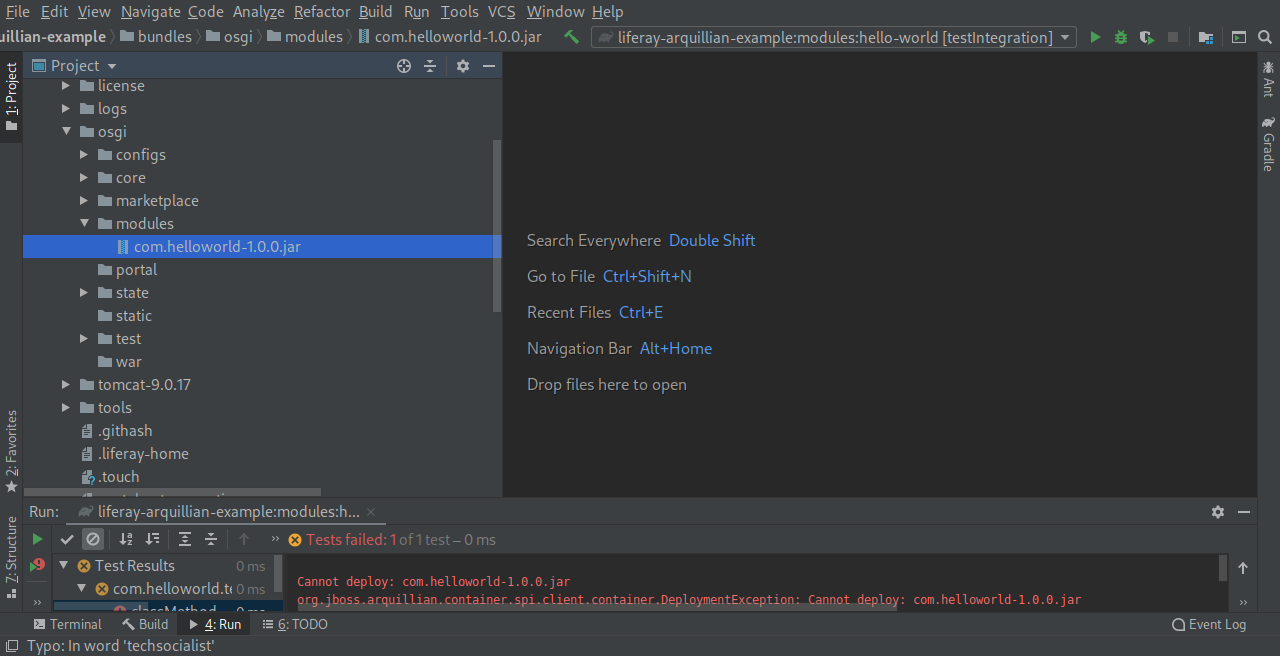
Run the testIntegration command again, if everything goes well fine else you would end in an error as said in the image below...


The above error is due to the installation of the plugin by the previous testIntegration command run...

Just delete the plugin which you find under the folder bundles/osgi/modules


rerun the testIntegration command again...

Now you should have your test executed and results success....


Hurray, we have successfully configured and executed the integration test.... well this concludes the post

Hope you had great learning....

Let me have your comments in the comments section about your try....

Thanks.


Thursday, October 31, 2019

Import and Upgrade of Liferay-6.2.0 Theme to Liferay-7.1.0 using NPM, Yeoman and Gulp in Ubuntu

In this post, we are going to discuss how to import and upgrade liferay-6.2.0 portal themes to liferay-7.1.0 themes.

Follow the instructions carefully to have a successful import and upgrade....

Before we Import and Upgrade, there are pre-requisites has to be met, make sure you have following tools available in your local environment.

Prerequisites
Name Version Download Page Direct Link
Node 11.15.0 Node Package Manager Download Page Click to Download Directly

You can use the following links to install Node Package Manager, Yeoman and Gulp.

Installation of Node Package Manager
The node package manager version given in the pre-requisite secition is different than the one that is mentioned in the link, but the installation procedure remains the same
Node Package Manager Installation

Installation of Yeoman and Gulp
Yeoman and Gulp Installation

Import and Upgrade of Liferay 6.2.0 Theme

Import of liferay-theme is a straight forward approach, but the way I want to discuss here is slightly different than the one what has been said in other tutorials or articles. I am not going to refer 6.2.0 theme directly instead I make a copy of it in a separate workspace and then import the same...

To have this done, follow the instructions carefully....

Open a terminal and navigate to one of your favourite locations and create folders to hold the components of the theme...

> mkdir hello-world-theme
> mkdir -p hello-world-theme/docroot
> mkdir -p hello-world-theme/docroot/_diffs
> mkdir -p hello-world-theme/docroot/WEB-INF

Now create the following files as mentioned....

> touch hello-world-theme/build.xml
> touch hello-world-theme/docroot/WEB-INF/liferay-look-and-feel.xml
> touch hello-world-theme/docroot/WEB-INF/liferay-plugin-package.properties

Updating build.xml file
Copy and Paste the content given below in build.xml file.

<?xml version="1.0"?>
<!DOCTYPE project>

<project name="hello-world-theme" basedir="." default="deploy">
<import file="../build-common-theme.xml" />

<property name="theme.parent" value="_styled" />
</project>

Updating liferay-look-and-feel.xml
Copy and Paste the below contents to liferay-look-and-feel.xml file and save it.

<?xml version="1.0"?>
<!DOCTYPE look-and-feel PUBLIC "-//Liferay//DTD Look and Feel 6.2.0//EN" "http://www.liferay.com/dtd/liferay-look-and-feel_6_2_0.dtd">

<look-and-feel>
<compatibility>
<version>6.2.1+</version>
</compatibility>
<theme id="hello-world-theme" name="hello-world-theme">
<template-extension>ftl</template-extension>
<color-scheme id="01" name="Green">
<css-class>theme_green</css-class>
<color-scheme-images-path>${images-path}/color_schemes/green</color-scheme-images-path>
</color-scheme>
<color-scheme id="02" name="Orange">
<css-class>theme_orange</css-class>
<color-scheme-images-path>${images-path}/color_schemes/orange</color-scheme-images-path>
</color-scheme>
</theme>
</look-and-feel>

Updating liferay-plugin-package.properties file
Copy and Paste the following content in liferay-plugin-package.properties file and save it.

name=hello-world-theme
module-group-id=liferay
module-incremental-version=1
tags=
short-description=
long-description=
change-log=
page-url=http://www.liferay.com
author=Liferay, Inc.
licenses=LGPL
liferay-versions=6.2.0+

#required-deployment-contexts=\
#    resources-importer-web

resources-importer-developer-mode-enabled=true

Now Copy and Paste the folders available in _diffs folder of the original 6.2.0 theme folder to the _diffs of hello-world-theme/docroot/_diffs

We are almost at the end of making things right...

Importing 6.2.0 Theme
Now everything is set to import the theme from 6.2.0 to 7.1.0

Run the command below to import the theme..
> yo liferay-theme:import
The above command would ask you to provide the absolute path of the theme folder, provide the one we have just created in previous steps...

You can refer the same in the image given below... in case you need it.


The console looks the one below when you provide the absolute path of the theme's root folder.


Press enter to execute the import.


At the end of the command execution, the console window ask you to provide the absolute path to the local application server, please provide the one which you have installed in your local machine.

In my case, I have given the Tomcat Application Server associated with the liferay portal, the image below would detail it in a comprehensive manner...


Once the theme is imported successfully we will have the directory called hello-world-theme in our workspace.
> cd hello-world-theme
> ls

Use the above command to check it out, you should see something like the one given in the image below..


This concludes the import of liferay 6.2.0 theme.

Theme Upgrade from 6.2.0 to 7.1.0

Now we have successfully imported the theme, the next step is to upgrade it to 7.1.0.

To upgrade the 6.2.0 theme to 7.1.0, use the following command

> gulp upgrade

The execution of the above command is depicted in pictures given below...the images are self explanatory.


This upgrade process converts the components from 6.2.0 to 7.1.0 to its best, but there would be certain errors which has to be fixed manually.

Correcting errors manually is a daunting task but ..... "Patience is a virtue".

This concludes the upgrade of liferay 6.2.0 themes to 7.1.0

Thanks.

Wednesday, October 30, 2019

Creating Liferay 7.1.0 Layout using NPM, Yeoman and Gulp

Hi

This blog post talks about creating liferay 7.1.0 layout using NPM, Yeoman and Gulp. There are many ways liferay offers developing layout for the theme, using the above mentioned tools is yet an other way of developing the same.

Without wasting much of our time lets get it started...

Before you start developing or creating layout, you should have the following prerequisites to proceed..

Prerequisites
Name Version Download Page Direct Link
Node 11.15.0 Node Package Manager Download Page Click to Download Directly

The afore mentioned tool(s) should be installed and to install the same you can refer an other post(s) by visiting the links given below...

Installation of Node Package Manager
The node package manager version given in the pre-requisite secition is different than the one that is mentioned in the link, but the installation procedure remains the same
Node Package Manager Installation

Installation of Yeoman and Gulp
Yeoman and Gulp Installation

Creating Liferay 7.1.0 Layout
To creat a layout, Open a terminal and fire the command below...

> yo liferay-theme:layout

The above command would initiate an interactive session with the user, as a user we have to answer those questions to have the layout to be deployed, the interactive session would appear something like the one given in the picture below...


Provide the name of the layout, in our case let the name be test-one,  The image given below compiles out the questions we answered and let us analyse each one of them


From the image above,

The first two questions takes in test-one as the name and id of the layout, the third question questions the liferay version we are using.

From here on, the questions are much concerned about the divisions of layout into rows and columns...

The fourth question is about adding the first row in the layout.... the point is to be considered is that, each row is split into 12 columns, you can decide how many columns to be there in the first row in our case, we have just one column i.e the entire row is treated as column now.

Once done the subsequent questions would be adding more rows and columns into it, likewise we can add as many rows and columns in a layout.

The following picture depicts the layout structure we have created....


Once we finalise our layout structure, we can hit Finish Layout option to complete the layout creation something like the one given below...


The last question of the interactive session would be the path to the local application server, provide the absolute path to the server's root directory, in our case, I have given the tomcat's directory path which comes as part of the liferay portal.

Now you can witness the layout created at the location where we started the interactive session and the layout can be deployed using the following command

> gulp deploy

With this we have concluded the creation of Layout for Liferay Themes.

Hope you had good time learning

Ciao.

Tuesday, October 29, 2019

Liferay Portal in Developer Mode in Ubuntu

Hi,

In this post, we shall see how to have liferay portal to run in developer mode. This mode of the portal becomes handy when we develop theme for the sites in liferay.

Without talking lets get in to action right away...

Prerequisites
Name Version Download Page Direct Link
Java 1.7 Java Download Page Click to Download Directly
Mysql 14.14 N/A N/A
Liferay Portal 7.1.0 - CE Lifeay Portal Download Page Click to Download Directly

I am going to use liferay-7.1.0 Community Edition as lab rat for our discussion.

For the installation of MySQL you can refer to an other post from the following link below...

MySQL Server Installation in Ubuntu 18.10

The installation details of the software packages mentioned in pre-requisite section is beyond the scope of discussion... you can refer online articles for their installation(s).

Let us assume you have the liferay portal 7.1.0-CE up and running on your local machine, following the instruction below to have the portal running in developer mode...

At the root of the liferay's portal directory, you must see a file called portal-ext.properties, if you do not then create one and append the file with the following property...

include-and-override=portal-developer.properties

The property include-and-override holds the reference of the property file portal-develper.properties, this property file holds all the necessary properties to have the portal run developer mode.

Once done, shut down the portal and restart it again, this will ensure the liferay portal up and running in developer mode.

Well this has concluded the discussion, hope you had great time.

Thanks.

Thursday, October 24, 2019

Developing Liferay-7.1.0 Theme using Node, NPM, Yeoman and Gulp

Hi

In this post I am going to discuss how to develop liferay-7.1.0 theme using Node, NPM, Yeoman and Gulp

Prerequisites
Name Version Download Page Direct Link
Node 11.15.0 Node Package Manager Download Page Click to Download Directly


Installation of Node Package Manager
Download the Node Package Manager archive from the links given in the prerequisite section.... the installation of Node Package Manager has been described in an other blog for you to refer, please refer the link below for the installation.

Though the versions are different, the installation procedure is same as that of the one given in the link.

Node Package Manager Installation

The following sections or the portions of the blog assumes the Node Package Manager is installed and working as expected...

Installation of Yeoman and Gulp
For the Installation of Yeoman and Gulp, you can refer the next blog post from the link given below...

Yeoman and Gulp Installation

Installation of Liferay Theme Generator
After installing the required packages for creating themes in Liferay-7.1.0, now is the time to install the Theme Generator... to do this

Open up a terminal and execute the command given below
> npm install -g generator-liferay-theme@^8.x.x
The execution of the above command would result something like the one given in the image below...


With that we have concluded the installation of Liferay Theme Generator

The following sections details the actual theme creation for Liferay-7.1.0

Creating Themes...
Open a terminal window and move to any directory of your choice to create themes

Fire the command below to have your theme created
> yo liferay-theme
the above command would ask you a set of questions provide answers to those for the successful creation of one, the sampled one is given below for you to refer...


This concludes the successful creation of the theme...

Now the next part is important, i.e deploying the theme.. please follow the section below to deploy the theme created.

Deploying the Theme
Move to the root directory of the theme which we did create and fire the command below...

Make sure your liferay portal is up and running.

> gulp deploy

if the command execution is successful, then you would have something as depicted in the images given below...


On the server console, the deployment of the new theme can be verified as depicted below...


With that we have concluded the theme development of liferay-7.1.0 using NPM, Yeoman and Gulp.

Hope you find this article useful.

Thanks.

Wednesday, July 10, 2019

Liferay Database Migration from 6.2.0.1-CE to 7.1.0-CE-GA1

Hi All,

This post details the steps to be taken care when you do the migration/upgrade process of database of liferay from 6.2.0.1-CE to 7.1.0-CE-GA1

1. Backing up the Database.
The first and the foremost one is to back up you old data... this can be achieved by taking the database dump of the portal, In my case I was using MYSQL as my back end, you can check the respective sites on How to take the database dump? if you use any other database server.

For MySql, the command given below would take the DB Dump of the data.
> mysqldump --routines --add-drop-table --disable-keys --extended-insert --host=localhost --port=3306 --user=root --verbose lportal --password > serverdump-of-database-lportal.sql
The above command takes the database dump and store it in a file named serverdump-of-database-lportal.sql (Assuming lportal is the database that liferay portal uses)

The above file can be used in case if there is a need to restore the database.

2. Creating a new database for the migration/upgrade
you can use the existing database or create a new one for the migration/upgrade, In the sense.... the database lportal database that liferay portal uses can be used, if you want the old database to be untouched, you can create a new one and restore the data that we dumped from the previous step.

Well, I am going to use the later one that is, a new database will be created and then the rest of the upgrade process would be continued....

To create a new database use the following command after login to the database server.

To login to the MySql Database Server
> mysql -u root -p
the above command would ask you to provide the password, provide the one associated with the root user account.

At the mysql prompt, fire the command to create a new database.
mysql> create database lportal_migration;
Now we have a empty database, the next step is to dump this database with the file that we have created in the previous step.

exit from mysql prompt, and fire the command below to populate the data...
> mysql -u root -D lportal_migration -p < serverdump_of_database-lportal.sql
the above command would take some time to complete the operation, relax till then.

Once the above operation is completed, you can the check the database by logging back in to the database server.

3. Installation of new liferay portal - 7.1.0-CE-GA1
You can download the said portal at the below mentioned location and unpack it to your favourite locaiton.

The next important step is to move the document_library of the old portal instance to the new portal instance

Just copy paste the document_library folder available at <liferay-portal-6.2.0.1-installation-path>/data/document_library to the location <liferay-portal-7.1.0-CE-GA1-installation-path>/data folder

if you find any other folder along with document_library, please move them too...

4. Creating portal-setup-wizard.properties File
You have to create a file named "portal-setup-wizard.properties" at the home location of the portal i,e <liferay-portal-7.1.0-CE-GA1-installation-path>/

Open the file in your favourite text editor and append the file with the lines given below...
jdbc.default.url=jdbc:mysql://localhost:3306/lportal_migration?useUnicode=true&characterEncoding=UTF-8&useFastDateParsing=false
jdbc.default.driverClassName=com.mysql.jdbc.Driver
jdbc.default.username=root
jdbc.default.password=admin
setup.wizard.enabled=true
liferay.home=<installation-path-of-liferay-ce-portal-7.1.0-ga1>

5. Creating com.liferay.portal.upgrade.internal.configuration.ReleaseManagerConfiguration.config file
At the location <liferay-portal-7.1.0-CE-GA1-installation-path>/osgi/configs, create a file named "com.liferay.portal.upgrade.internal.configuration.ReleaseManagerConfiguration.config".

Open the file in a text editor and append the file with the following line
autoUpgrade="false"

6. Creating com.liferay.portal.search.configuration.IndexStatusManagerConfiguration.config file
At the location <liferay-portal-7.1.0-CE-GA1-installation-path>/osgi/configs, create a file named "com.liferay.portal.search.configuration.IndexStatusManagerConfiguration.config".

Open the file in a text editor and append the file with the following line
indexReadOnly="true"

7. Updating appserver.properties file
At the location <liferay-portal-7.1.0-CE-GA1-installation-path>/tools/portal-tools-db-upgrade-client/ you would find a file named "appserver.properties"

Open the file in a text editor and uncomment the lines you find under "Tomcat" and save the file.

8. Updating portal-upgrade-database.properties
At the location <liferay-portal-7.1.0-CE-GA1-installation-path>/tools/portal-tools-db-upgrade-client/ you would find a file named "portal-upgrade-database.properties"

Open the file in a text editor and replace the lines under ##MySql section as said below...
FROM :
#jdbc.default.driverClassName=com.mysql.jdbc.Driver
#jdbc.default.url=jdbc:mysql://localhost/lportal?characterEncoding=UTF-8&dontTrackOpenResources=true&holdResultsOpenOverStatementClose=true&useFastDateParsing=false&useUnicode=true
#jdbc.default.username=
#jdbc.default.password=

TO :
jdbc.default.url=jdbc:mysql://localhost:3306/lportal_migration?useUnicode=true&characterEncoding=UTF-8&useFastDateParsing=false
jdbc.default.driverClassName=com.mysql.jdbc.Driver
jdbc.default.username=root
jdbc.default.password=admin
Save the file.

9. Updating portal-upgrade-ext.properties file.
At the location <liferay-portal-7.1.0-CE-GA1-installation-path>/tools/portal-tools-db-upgrade-client/ you would find a file named "portal-upgrade-ext.properties"

Open the file in a text editor and edit the file as said below
FROM :
#liferay.home=../../

TO :
liferay.home=<liferay-portal-7.1.0-CE-GA1-installation-path>
module.framework.base.dir=../../osgi

10. Running the "db_upgrade.sh" file.
This is the last step in the process, open up a terminal and navigate the folder <liferay-portal-7.1.0-CE-GA1-installation-path>/tools/portal-tools-db-upgrade-client/ and run the file at the file terminal
> ./db_upgrade.sh
In Case of windows operation system use the file "db_upgrade.bat"

During the upgrade process, if you encounter any error, you have to repeat the steps from the beginning.

Well that is it hope this post helped you in upgrading the database from 6.2.0.1 to 7.1.0

Thanks.


Sunday, February 10, 2019

Installing Liferay IDE and Code Upgrade/Migration tool in Eclipse Photon

Hi, in this post we are going to discuss the installation of Liferay-IDE in Eclipse - Photon

To have this done we need to have the softwares required... the following table provides the tools/softwares, use the link(s) to download them..

SoftwareDownload Link
Java - 1.8Java Software Development Kit - 8 Download  
Eclipse Photon(4.8)eclipse-jee-photon-R-linux-gtk-x86_64.tar.gz

To Install Java, there are plenty of resource available online find one for installing, Please make sure you set the environment variables appropriately, what I meant was setting JAVA_HOME and PATH

Use the following command to check Java-1.8 is available
> which java
the above command would give the path of the java executable.

To check the version of the same, use the following command
> java -version
Proceed with installing eclipse-photon

Just extract the .tar.gz file into your preferred location

If you like to change the default workspace location and config location of your
eclipse refer the post below...

Now start eclipse....

The objective of this post starts form here...

After you start eclipse, go to "Help" menu and click on "Install New Software", you would see a dialog appearing... Click on Add to add the repository for Liferay IDE installation as follows...

the URL for downloading the software component can be taken from the following location

https://community.liferay.com/project/-/asset_publisher/TyF2HQPLV1b5/content/ide-installation-instructions

you would find two URLs under the section "Using an Update Site", the first location gives you the stable version of the component and the second is the milestone

I am going to use the URL which stands against "Stable",you can use the
second one too but I prefer the stable one.

Copy the url and add the repository as given in the Image below and click on add to add the repository.


Soon after you add repository, eclipse would try to download the component and the dialog appears like the one below...


Try expanding the component Liferay IDE.. if you would, you could find five sub-components namely...

1. Buildship: Eclipse Plug-ins for Gradle
2. Liferay IDE
3. Liferay IDE AlloyUI
4. Liferay IDE Enterprise
5. Liferay IDE Maven Support

you can install all the components by selecting the parent component or selected one depending on your need. I want all to be installed hence selecting all and click next


now eclipse tries to download and install all the components. If everything goes fine at your end at the first go then it's fine else eclipse would display an error message something like this


Do not be panic, the main purpose of writing this post is to tackle this error... simply cancel the operation and proceed as follows...
Now you see the main window of eclipse... select "Help" menu and click "check for updates", now you would have something like shown in the image below...


select the component by clicking on "Select All" and proceed forward clicking Next


Click Next


Accept the license agreement and click "Finish" after installing the component eclipse would prompt you to restart it, restart by clicking the "Restart Now" Button.


Out of the components listed we have installed just one, we are going to install the rest now...you might have eclipse window on screen now if not start it.

Now we have to repeat the steps from step one i.e Select "Help" menu and click on "Install New Software"

from the Work with drop down, select the liferay-ide-repository, now what appears on the dialogs almost the same as image-2 of this post


try expanding the component Liferay IDE, doing so you would have something like shown in the image below...


As you can see we have only four components now to be installed excluding the first we installed separately, now try to installing one by one... you can also go with selecting all but I have not tried it, if anything goes wrong in the bulk install try installing one after the other..

I am sure you will have all the components installed and your eclipse would be packed with Liferay IDE. This update also comes with Liferay code migration tool.

To confirm, we can select the liferay prespective from the Window menu as below

Window > Perspective > Open Perspective > Other

Select the Liferay Workspace from Open Perspective dialog

Clicking the Open button would make eclipse to appear as Liferay IDE.

The image below would explain how to have the code migration tool along with Liferay IDE, from the window menu navigate as mentioned below to have the liferay code upgrade/migration tool

Window > Show View > Other

Clicking on Open, results the window to appear like the one as below...Well this concludes the installation of Liferay IDE in Eclipse-Photon.


Hope you liked it, Thanks.

Installing Python and Creating Virtual Environment for Pip for package installations in Ubuntu

Hi, In this post we are going to look at how to install Python and PIP and installing packages in virtual environments.. Without wasting...